Here is a list of Computer science terminology that needs to be understood in order to
effectively teach these courses. Below, we will have a definition of a term, and an example in
real time through our intro-alice-starter world in order to effectively grasp the meaning can be found at the bottom. Each
section is broken up by the terminology that is necessary for teaching the following lesson
plan. First we have Beaded Bag, then Horses, finishing with some general terms that may be
useful. It is organized this way because the Horses plan is more complex, and requires
understanding of the terminology out of Beaded bag too.
Beaded Bag Computer Science Content
This section should provide computer science content necessary to understand in order to
teach the Beaded bag lesson.
Algorithm
An algorithm is a sequence of steps to solve a problem or perform a task.
Similar to changing a tire or following a recipe to bake a cake, these actions
take a specific step-by-step processes. In Alice, the algorithms we develop help
to animate the virtual world.
Code
Computer code is how computer users enter instructions for the computer to
understand the step-by-step instructions. Computer scientists use a programming
language to write code. Java, Python, and
C++ are all examples of programming languages. In Alice, this process is
resembled through drag and drop
code blocks allowing users to create programs through visually organizing and
connecting these code blocks.
Sequential
The order in which instructions (lines of code) are executed makes a difference.
If you were
to run straight for one mile, turn left, then run straight for two miles, you
will be in a different spot than
if you run straight for two miles, turn left, then run straight for one mile.
Often, in a computer, code is
executed sequentially, or, in the order in which it appears line-by-line. For
example, in Alice, calling the
jump command followed by the run command will make a character first jump up
and then, second, run.
Parallel
A parallel event is when two actions happen at the same time. In Alice, this
parallel function is
called a do-together block. For example, imagine two characters walking
side-by-side, the user would use a
do-together block to make both characters start walking at the same time.
Horses Computer Science Content
This section should provide computer science content necessary to understand in order to
teach the Horses lesson.
Boolean
A boolean (true/false) is a type of variable that can take one of two values:
true or false.
Booleans can be used as the condition in a conditional (if/then) statement or as
a condition (sometimes
called the loop guard) in a while loop. In Alice, functions can return a boolean
variable. For example, the
world has a function “both a and b” that takes as input two booleans, a and b,
and returns true if both are
true, and false if otherwise.
A comment is a region of text in code that is not meant to be executed, but
instead provides information about the executable code around it. It provides
useful information to the coder when revisiting code, and to others who may view the code.
Usually comments speak to how the code runs, giving some information that
isn’t obvious when reading through the code.
Conditional Statement
A conditional (if/then) statement controls whether or not certain lines of code
are executed. A boolean (true/false) value or expression is given as input, and
if that value is true, then the
code is executed. For this reason, conditional statements are sometimes referred
to as if/then statements.
In Alice, if/else blocks can be found at the bottom of the programming
environment, all if blocks have an
else block that follows. Code in the else block is executed if the input value
is false. We see conditional
statements in everyday language as well! For example: if the day is
Monday, then we go to school.
Property
A property is a variable that describes an object. In Alice, all objects (e.g.,
horse) have
properties, including skin texture and isShowing. You can see the list of
properties for an object by
clicking on the object in your scene, then select in the properties tab under
objects details in the
bottom left hand corner.
Variable
A variable is a value that stores information to describe an object or method.
The value can be
a number (e.g., height), a string (e.g., name), or even a color. In Alice, for
example, a variable is used when
the user wants to specify the number of jumps an object should take.
Event
How does a computer know when to run an algorithm?
In Alice, we will use the command: “When the world starts…”
(do the following stuff). Computers “listen” for events to occur,
and when they “hear” an event, they run some code.
Examples
Algorithm
Pull up the intro-alice-starter world in Alice with an empty space in the world.my first method.
If you have leftover methods from the previous section, you can either delete them by right
clicking on each of them or you can open up a fresh started world be re-downloading the file.
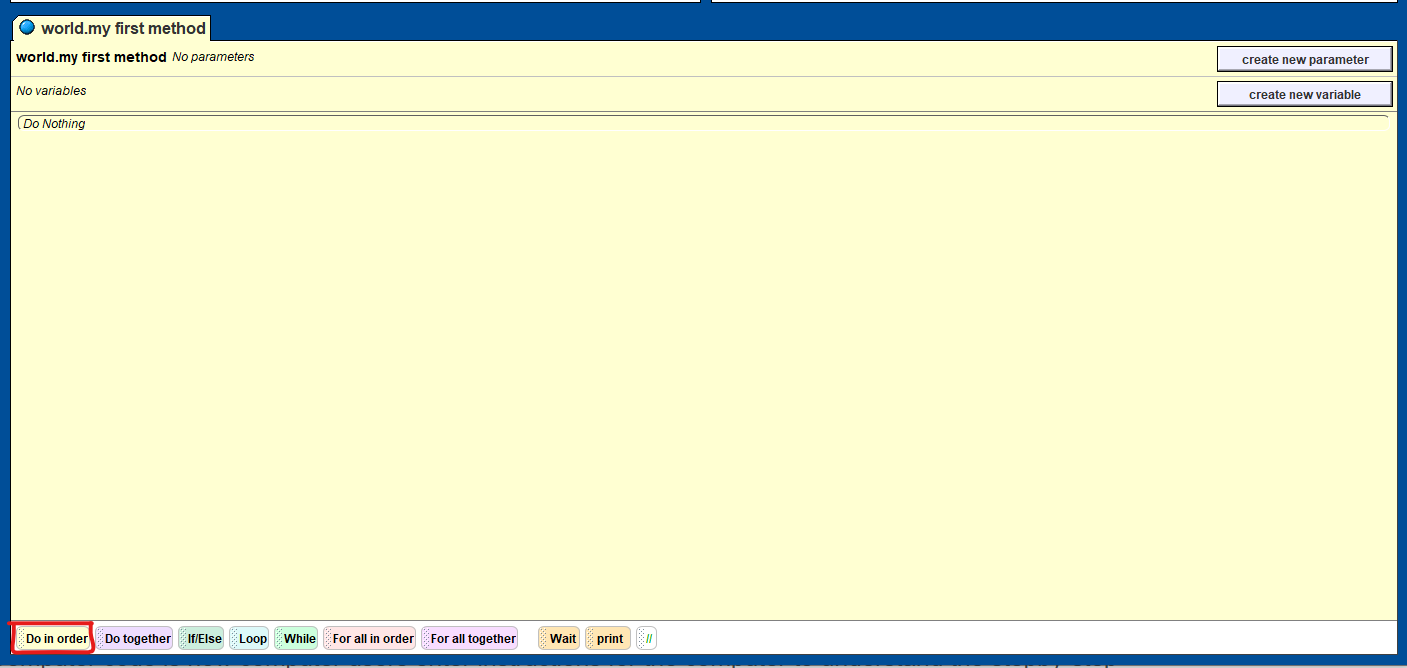 Grab the “Do in order” block from below and place it into your world.my first method. This is
depicted in the image above and highlighted by the red box. Once you place this into your
world.my first method, we need to populate it with actions. You can decide to use any actions
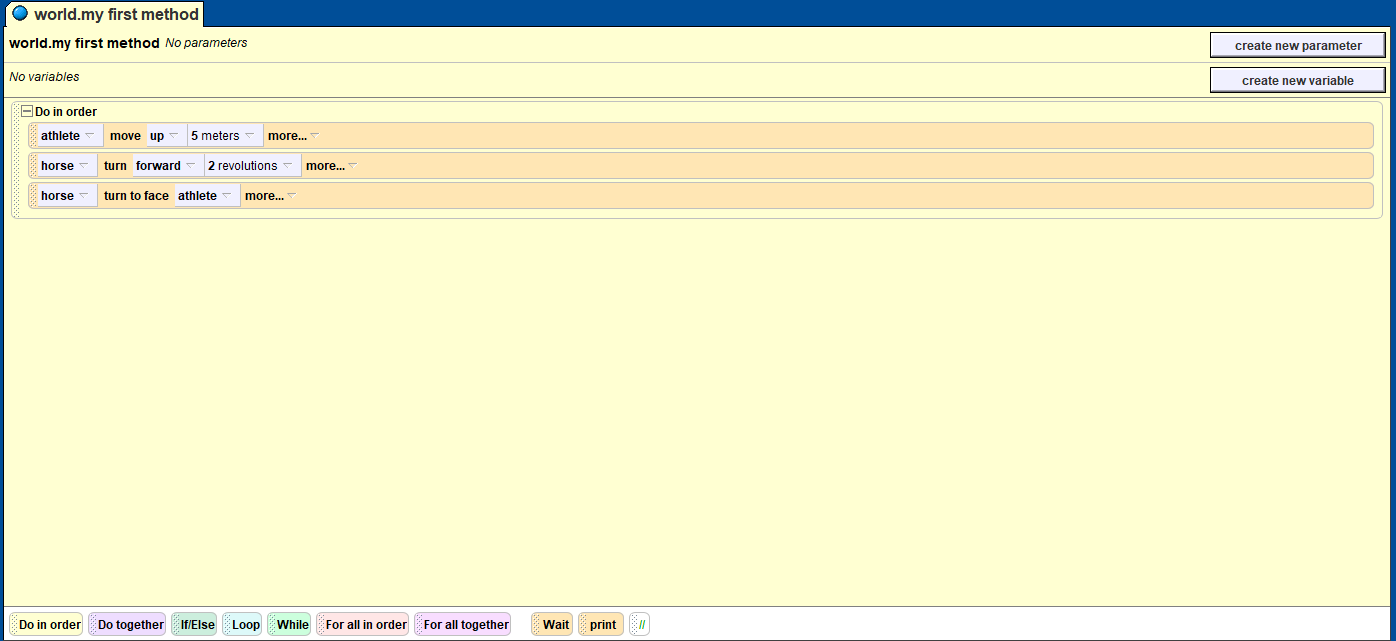
from the two characters in order to craft your algorithm. Our algorithm moves the athlete up,
spins the horse, and then turns the horse to face the athlete. You can also make the characters
say certain things, or move in other ways. Once you’ve made your algorithm, play it with the top left button named “Play”.
Below is an image of our algorithm in the world.my first method.
Grab the “Do in order” block from below and place it into your world.my first method. This is
depicted in the image above and highlighted by the red box. Once you place this into your
world.my first method, we need to populate it with actions. You can decide to use any actions
from the two characters in order to craft your algorithm. Our algorithm moves the athlete up,
spins the horse, and then turns the horse to face the athlete. You can also make the characters
say certain things, or move in other ways. Once you’ve made your algorithm, play it with the top left button named “Play”.
Below is an image of our algorithm in the world.my first method.
Code
In our Alice environment the code is represented in the world.my first method section. This
details all our code, and that code tells Alice how to properly represent our commands to the
final animation.
Sequential
In your Alice world, you made an algorithm that is sequential. What happens if you switch
around the ordering to some of your actions? A different animation will play. This is important
to note when talking about animating a story. The sequence of events matter in order to
guarantee that you animate what you want.
Parallel
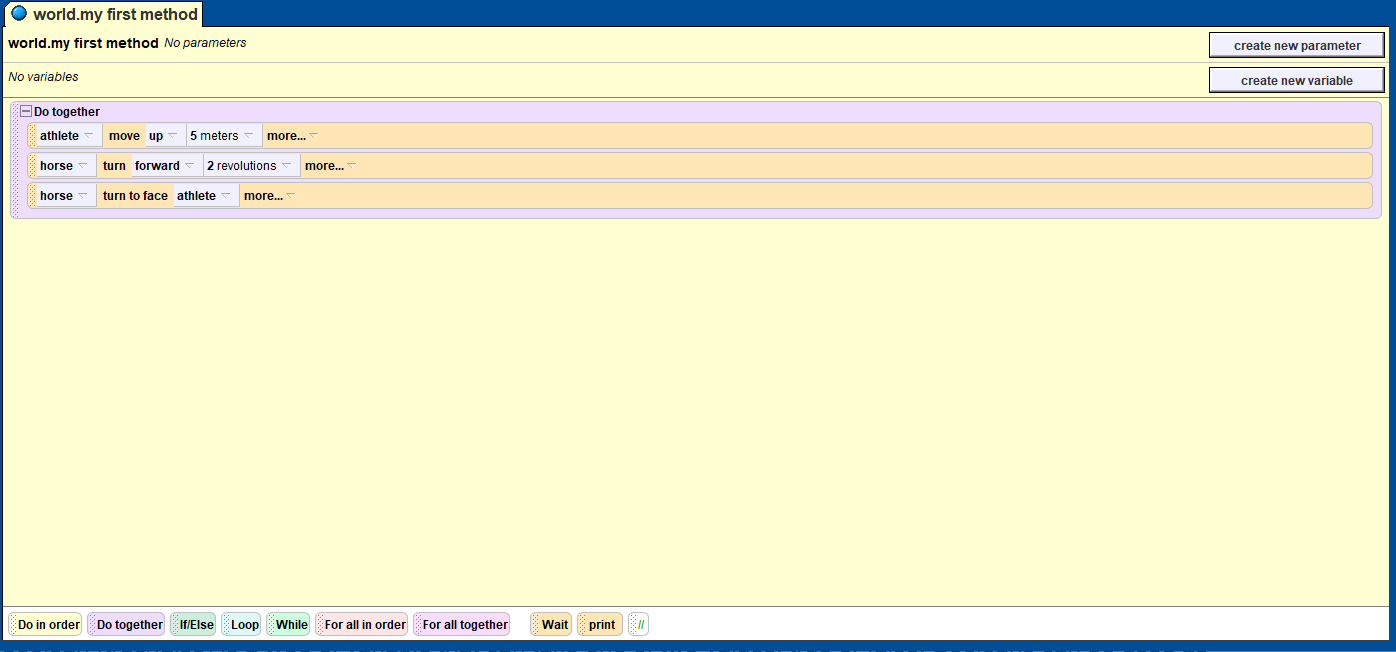
Similarly to how we can sequentially play out events, we can also play out events together. If
you take the block “Do together” from below and move it into your world.my first method,
you can move all of your algorithm into the “Do together” block and see how things change. If
you want to delete the “Do in order” block afterwards, right click on it and then select
“delete”. Play your animation to see the difference!
Boolean
Go ahead and clear anything that is currently in the “world.my first method” workspace, and
then move the If/Else block into the workspace.
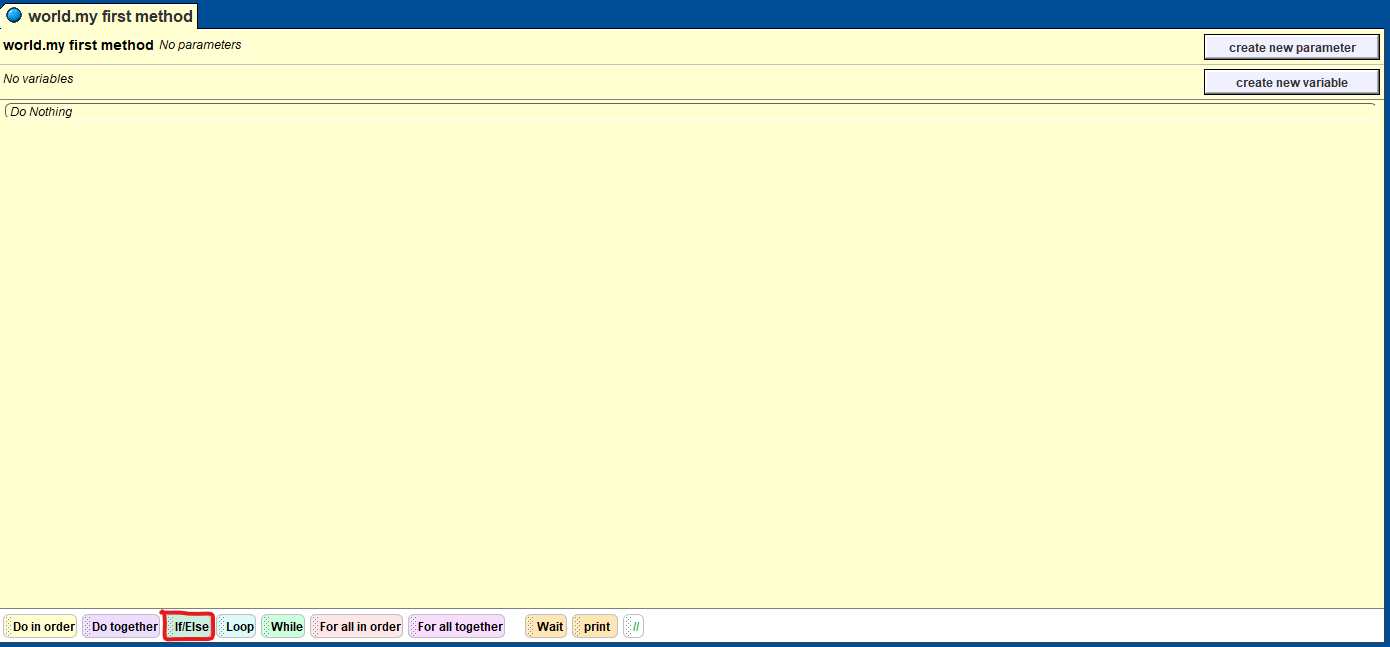 It should give you the option to select true or false. This is our boolean variable. For now, just
pick either and leave it for later. In the example, we picked true.
It should give you the option to select true or false. This is our boolean variable. For now, just
pick either and leave it for later. In the example, we picked true.
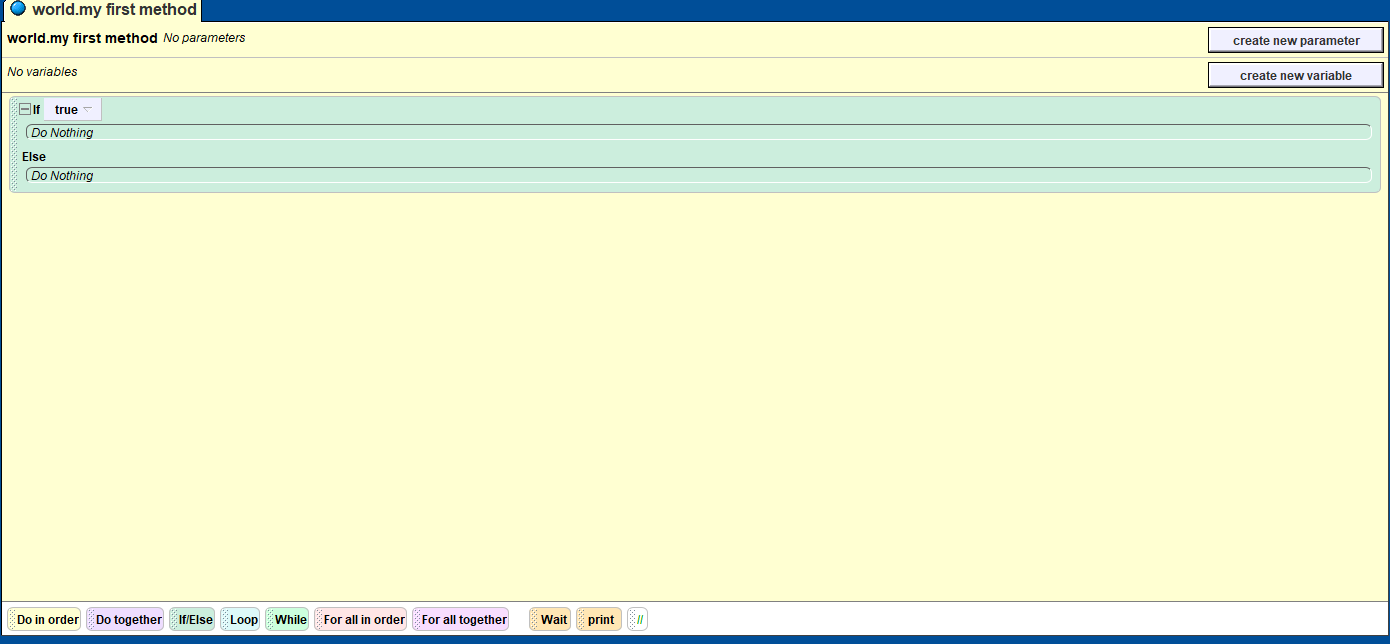
In the same spot where the If/Else block is, all the way to the right there is a block called “//”.
If you select this and place it into your workspace, it will prompt you to add a comment. This
does not affect code at all and is meant to be used for readability. Try to add your own comment!
Conditional Statement
Go back to your If/Else statement and add some methods to either section. Now notice what
happens when you change the Boolean variable. If the boolean variable is “True” it plays the
first set of actions and if the boolean variable reads “False” it plays the methods listed
underneath the Else statement. Give this a try for yourself!
Variable
If you click on the horse in our Alice environment and navigate to the properties for the horse,
you should see a property called opacity. This property is associated with a variable (currently
1). If you edit this variable, it affects the property of the horses opacity. Give it a try!
Event
- When a key is pressed…
- When a mouse is clicked…
- When a screen is touched…
This is not very prevalent in our Alice lessons, however it may still be valuable to understand.
Try to add an event yourself! The Events tab has a button called “create new event” and using
the understanding we’ve gotten so far, it shouldn’t be too hard to figure out.